
Any element can own a child canvas. The way back stays visible in the breadcrumb trail.
The app is
on the Microsoft Store.
Installation goes through the Windows store: it installs the app and keeps it updated. A SYDPIK account is needed neither to install nor to work.
Open in the Microsoft StoreOpens the store pageSee the mechanics first
Free For Windows No account
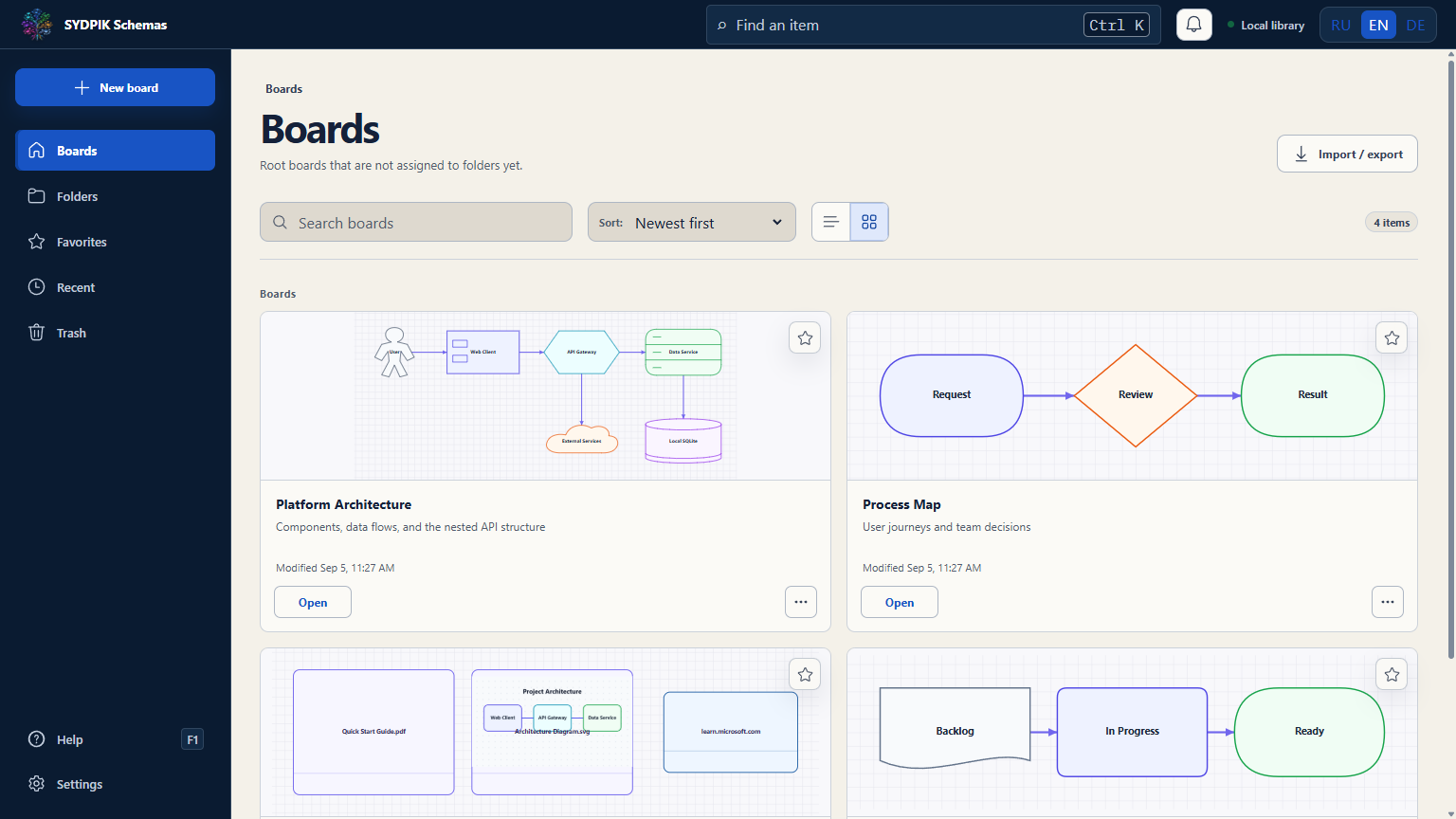 This is the library after installation
The store listing
What you will see there
The exact size, version and Windows build requirements are shown by the store itself: they change with every release, and repeating them here would mean telling an untruth one day.
Open in the Microsoft Store- Name
- Schemas
- Publisher
- SYDPIK Schemas
- Category
- Productivity
- Platform
- Windows
- Price
- Free
- Interface languages
- Русский · Українська · English · Deutsch
What is inside
What you get after installing
The full list of capabilities is on the product page and in the comparison. Here is what people install the app for.
Shapes, groups, labels and three link types: straight, orthogonal and curved.
ISO 5807 flowcharts, BPMN, UML, C4, electrical and process notations.
Images, PDFs, documents, archives, audio, video and links as managed project files.
Full-text search, a structure overview and library diagnostics.
A .schemasboard package plus export to SVG, PDF, images, HTML, PPTX, draw.io and JSON.
With no mandatory account and no cloud service.
Action history, clipboard workflows and persistence that survives a restart.
Before you install
Worth knowing in advance
Better read before the store than found out after.
Windows only
The app is a desktop application and ships for Windows. There are no versions for macOS, Linux, tablets or phones.
Interface in four languages
English, German, Russian and Ukrainian. The language is chosen on the first screen and can be changed in Settings.
Works without the internet
The core work needs no network. The store needs the internet only to install and update.
The data stays with you
The library, the settings and the material sit on your computer. We do not see them and we do not send them anywhere.
After installing
The first three steps
- 01Choose the language
The first screen asks for the interface language. It can be changed later.
- 02Open the guided project
On the first run a project is created that shows how the levels work.
- 03Press F1 if something is unclear
The help centre opens inside the app — both on a canvas and in the library.

Install it and try.
Free, without an account and without commitment: the app can be removed with Windows, and the library stays with you.
Open in the Microsoft StoreOpens the store page